Filtering DayBack Calendar with a Custom Sidebar

Check out this sweet calendar modification by Jeremy Sanchez from aACE Software. I love how the statuses colors advance in chroma as the project moves through stages. Jeremy added FileMaker layout objects and buttons to the left of the calendar to more closely match the rest of the aACE business management software.

By adding their own FileMaker objects to the left of the calendar web viewer, they were able to reproduce and extend the functionality of DayBack’s original sidebar while making a couple of tweaks of their own.

  • They’ve moved the Advanced Filters and Clear Filters buttons to the top of the Filters tab so that their clients who have long lists of statuses won’t need to scroll down to find these buttons.
  • They’ve added an “Omit” button for toggling between including the selected statuses and omitting them, as well as a button for clearing all selected statuses.
  • At the top of the sidebar, they’ve added a “Jump to date…” button, which brings up a FileMaker drop-down calendar. Selecting a date from this drop-down calendar navigates the user to the selected date.
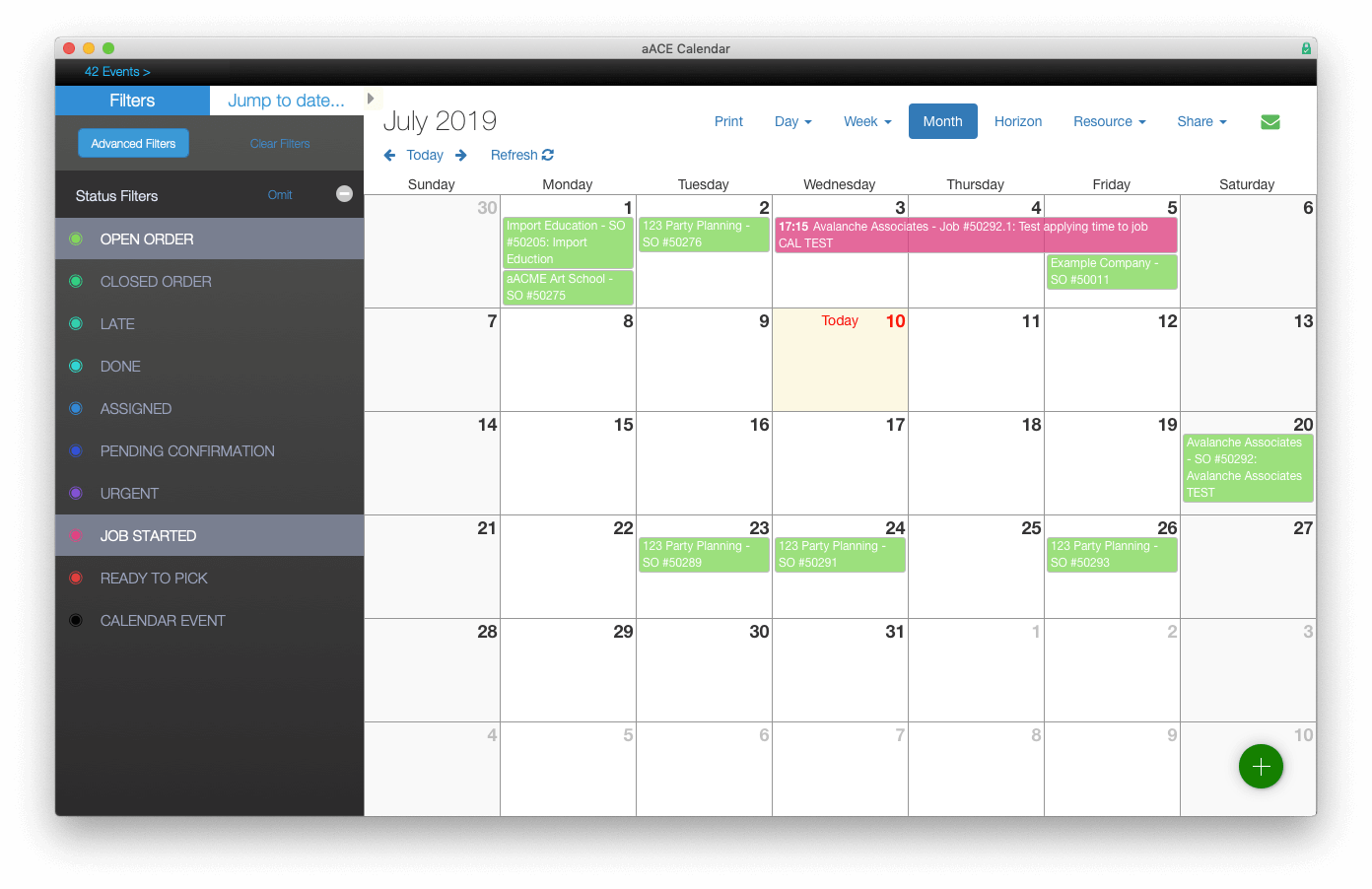
FileMaker Calendar Sidebar

If you want to add something like this in your copy of DayBack, controlling the calendar is accomplished by modifying DayBack’s filter objects and taking advantage of DayBack’s built-in navigation scripts to update the calendar view from FileMaker buttons.

Thanks, Jeremy, for another great example of a custom sidebar in DayBack!

And if you’d like help building your own custom sidebar in DayBack, please reach out to us, and we’ll schedule some time to chat!

Featured Posts

Follow Along

Stay up to date with the latest news & examples from SeedCode

Leave a Reply

Your email address will not be published. Required fields are marked *

Check out some of our other posts ...

DayBack for Supabase

FileMaker and Supabase We are very excited to be supporting Supabase as a datasource for DayBack Calendar. You can embed DayBack in your Supabase project, or see Supabase records alongside your FileMaker events in DayBack.

Read More »

Visual Buffers: a More Accurate Calendar

Buffers in DayBack let you define padding before and after your events so you can see the time you need, not just the time you booked. Instead of squeezing appointments into every available minute, your calendar starts to reflect the reality of how your day unfolds. Buffers is ideal for travel time,

Read More »

Add Jobs to a Mapped Route in FileMaker

See When Assets are Passing by Unscheduled Jobs Showing unscheduled items on the map lets you see when a route is passing close to jobs you need to schedule. As you click on each truck, you’ll see it’s route for the day and find unscheduled jobs that would be good

Read More »

Scheduling Teams and Equipment

Seeing Availability at a Glance We recently customized DayBack for a customer who wanted to consolidates all the decisions of team assignments into a single screen. When a dispatcher clicks on a job, they can schedule the entire field team (technicians, lead, vehicle, departure plan, and equipment) without leaving the

Read More »

FOLLOW ALONG

Stay up to date with the latest news & examples from SeedCode

© 2026 SeedCode, Inc.